The Terminal Sprawl Problem
When we first started running AI agents for code generation, we were fine with a handful of terminal tabs. Each agent ran claude or gpt in a separate tmux pane, and we'd flip between them. That worked until we had ten agents running across different repositories, each on its own feature branch, with different prompts and execution modes. Suddenly, we were spending more time finding the right terminal than actually reviewing the code the agents produced.
Terminal multiplexers like tmux and screen are great for command-line work, but they don't understand what an AI agent is doing. They show raw output but no context: which agent is stuck, which one just opened a PR, which one is burning through tokens on a bad loop. We needed a monitoring tool built specifically for AI agents, not a generic terminal manager.
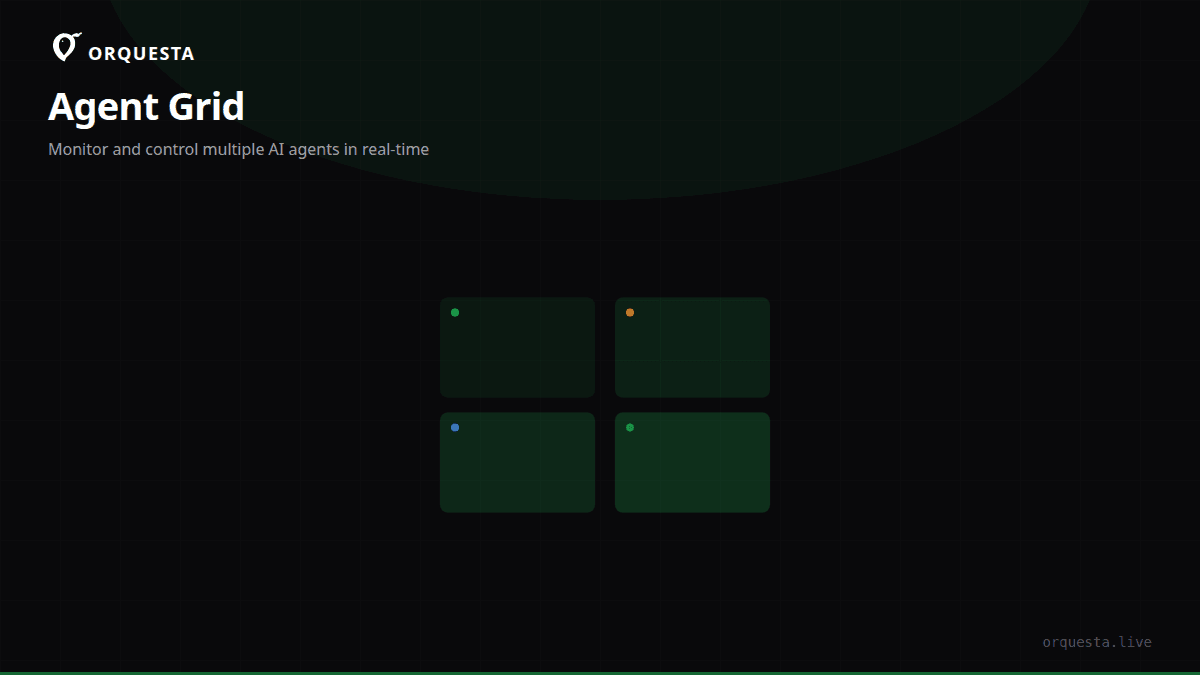
That's why we built Agent Grid. It's a single dashboard that shows every AI agent running on your machine, with live streaming terminals, status indicators, and layout controls that make it feel like a mission control for code generation. Here's how it works under the hood and why it matters when you scale to dozens of agents.
How Agent Grid Works
Agent Grid is part of the Orquesta platform. It connects to the Orquesta CLI, which manages local LLM execution (Claude, OpenAI, Ollama, vLLM) and syncs agent state to the dashboard. The Grid itself is a web interface served from a local server, so all data stays on your machine. No cloud round-trips, no latency, and your code never leaves your infrastructure.
The core components are:
Live Terminals with Streaming Output
Each agent appears as a tile in the grid. Inside that tile, you see a live terminal stream—every line the agent prints, every tool call, every git commit message. The stream updates in real-time via a WebSocket connection to the local Orquesta server. We use xterm.js for terminal rendering, which gives us full ANSI escape code support, so colors and formatting from the underlying CLI are preserved.
You can click any tile to expand it to a full-screen terminal, or keep it in the grid for a glanceable view. The expanded view also gives you access to the agent's full history, not just the current session. That's critical when you need to debug why an agent entered a retry loop or made a questionable edit.
Drag-to-Rearrange and Layout Persistence
Tiles are draggable. You can reorder them, resize them, and create custom column layouts. If you're running five agents on the frontend and three on the backend, you can group them visually. The layout persists across sessions, so every time you open Orquesta, your grid is exactly how you left it.
We built this with a simple grid system using CSS Grid under the hood, but we added drag-and-drop with react-dnd. Each tile has a unique agent ID, and the layout state is stored in a local JSON file. This means you can have different layouts for different projects—define a layout per workspace, and Orquesta will load it automatically when you cd into that directory.
Status Indicators for At-a-Glance Monitoring
The most important part of monitoring multiple agents is knowing which ones need your attention. Each tile has a status badge in the corner:
- Green: Agent is running and making progress.
- Yellow: Agent is waiting for input or an external resource (like a code review).
- Red: Agent has errored out or exceeded a token limit.
- Gray: Agent is paused or completed.
- Blue: Agent is in Batuta mode (autonomous ReAct loop).
These colors are consistent across the Orquesta UI, so you can spot a failing agent from across the room. We also show a small progress indicator—a thin bar that fills based on the estimated steps remaining. It's not perfect, but it gives you a sense of whether an agent is 10% or 90% done without opening the terminal.
Column Layouts and Responsive Resizing
The Grid supports multiple column modes: 1, 2, 3, 4, or auto. Auto mode uses a CSS masonry-like layout that fits as many tiles as possible based on your screen width. On a 4K monitor, you can comfortably view 16 agents in a 4x4 grid. On a laptop, auto mode stacks them vertically but keeps the live terminal streams scrolling.
We also added a "focus mode" that temporarily hides all other tiles and gives the selected agent the full screen. It's like zooming in on one agent without losing the context of the others. A quick keyboard shortcut (Ctrl+F) toggles it.
Why This Matters When You Run 10+ Agents
Running one or two AI agents is manageable. Running ten, twenty, or fifty is a different beast. The problems compound quickly:
- Context switching: Each agent has its own prompt, branch, and execution mode. You need to remember what each one is supposed to do.
- Error detection: If an agent silently fails and you don't notice, you might merge broken code.
- Resource usage: Multiple local LLM processes (especially vLLM) can eat RAM and GPU. You need to see which agent is hogging resources.
- Parallel development: When you have agents working on different features, you want to review their diffs as they come in, not after the fact.
Agent Grid solves these by giving you a single plane of glass. You can see all agents, their status, and their live output at once. No more alt-tabbing through terminals or running ps aux | grep claude to find a stuck process.
A Real Workflow: Running 12 Agents Across 3 Projects
Here's a typical scenario we use internally. We have three repositories: a backend service, a frontend app, and a shared library. We spin up four agents per repo:
orquesta agent start --prompt "Refactor the auth module to use JWT" --mode auto --repo backend
orquesta agent start --prompt "Add rate limiting middleware" --mode batuta --repo backend
orquesta agent start --prompt "Implement a new dashboard component" --mode agent --repo frontend
orquesta agent start --prompt "Fix failing tests in the billing service" --mode ssh --repo backend
Each command launches an agent and registers it with the Grid. The Grid tiles show the agent's mode, the repo, the current git branch, and a live stream of its actions. If one of the Batuta agents starts looping (e.g., it keeps trying to fix a bug that isn't there), the status indicator turns red, and we can click into the terminal to see the ReAct loop: Think > Act > Observe > Repeat. From there, we can intervene manually or kill the agent.
After a few minutes, agents start opening PRs. The Grid shows a small notification badge on the tile when a PR is created. We can then review each PR in a side panel without leaving the Grid.
Resource Monitoring Integration
One feature we added early was CPU and memory usage per agent. Each tile shows a tiny sparkline of the agent's resource consumption. When you're running local models with Ollama or vLLM, this is invaluable. You can spot a memory leak in a model server before it takes down your whole machine.
Under the Hood: How the Grid Stays in Sync
The Orquesta CLI runs a local WebSocket server on port 7373. Each agent process communicates with this server to send its output and status. The Grid web UI connects to the same server and receives updates in real-time. Because everything is local, latency is under 10ms—essentially instant.
We deliberately avoided polling. Polling would add unnecessary CPU load and introduce lag. WebSockets give us a push model that scales to dozens of agents without breaking a sweat.
The Grid UI is built with React and TypeScript. We use Zustand for state management, which keeps the component tree lean even with 50+ tiles. Each tile is memoized, so only the active terminal stream re-renders on each update. That's crucial for performance—when you have 20 agents all streaming output at 60 lines per second, you don't want to re-render the entire grid every 16ms.
The Future of Agent Grid
We're currently working on a few enhancements:
- Group actions: Select multiple agents and pause, resume, or kill them in one click.
- Search and filter: Quickly find an agent by prompt keyword, repo, or branch.
- Notification hooks: Send a Slack message or email when an agent fails or opens a PR.
- Cross-machine monitoring: Use Orquesta's cloud sync to view agents running on remote servers via SSH (already possible with Batuta, but we want it in the Grid).
Takeaway
Agent Grid isn't just a terminal multiplexer with a facelift. It's a purpose-built monitoring tool for AI agents, designed to handle the chaos of running dozens of code-generating processes simultaneously. The combination of live terminals, drag-and-drop layouts, status indicators, and column modes makes it possible to manage a fleet of agents without losing your sanity. If you're running more than five AI agents on your machine, you need something like this—and if you're using Orquesta, you already have it.