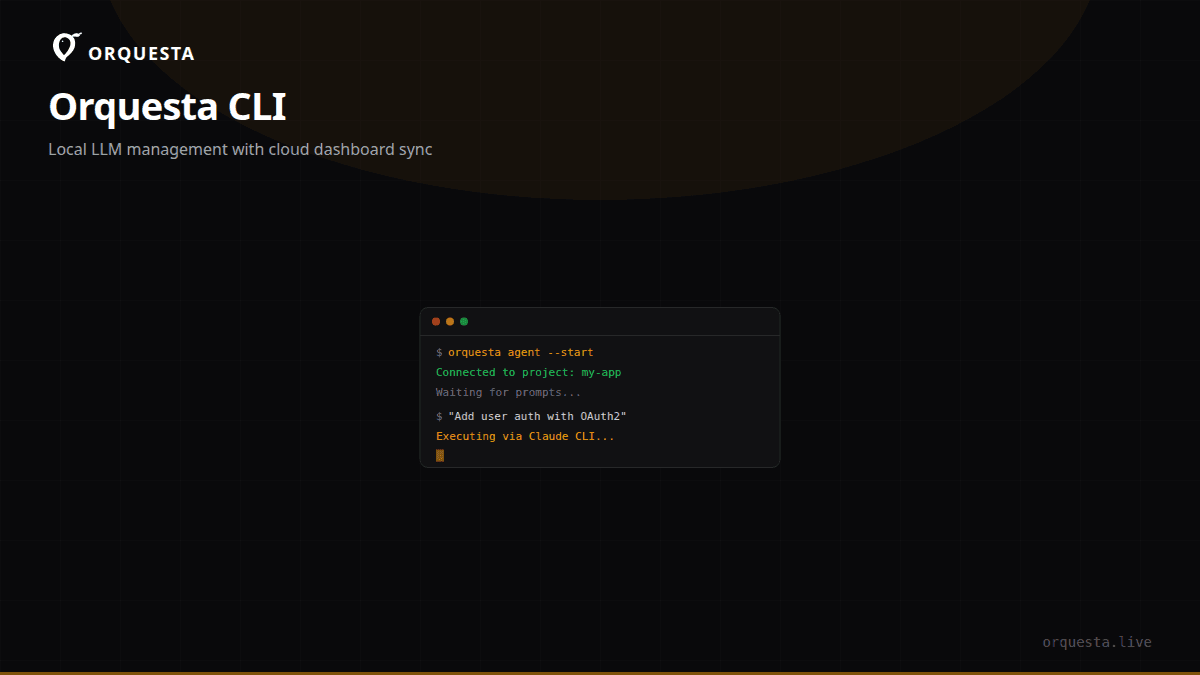
Why Another CLI for LLMs?
Managing LLMs across a team is a mess. Developers want to run models locally for privacy and cost, but collaboration requires shared configuration and visibility. We built Orquesta CLI to bridge that gap: a command-line tool that lets you run any LLM provider locally—Claude, OpenAI, Ollama, vLLM—while syncing every configuration to the Orquesta cloud dashboard. The sync is bidirectional, prompt history is tracked, and tokens are scoped to your organization.
Before Orquesta, our team juggled multiple environment variables, shell scripts, and manual config files. Switching between providers meant editing code or restarting processes. Sharing prompts and model settings happened over Slack or Git. It was fragile.
Orquesta CLI replaces all that with a single binary that understands your local models, manages provider credentials, and keeps the dashboard updated in real time. The agent still runs on your machine—code never leaves your infrastructure—but the control plane lives in the cloud.
Installing and Authenticating
Install the CLI with a single command:
curl -sSL https://get.orquesta.dev | sh
Or via npm:
npm install -g @orquesta/cli
Once installed, authenticate and initialize a project:
orquesta auth login
orquesta init
The auth login command opens a browser for OAuth, creating a local config file at ~/.orquesta/config.yaml. The init command scaffolds a project directory with a .orquesta/ folder containing provider configurations and a connection to your organization's workspace.
The config file uses a simple YAML structure:
org: acme-corp
default_provider: ollama
providers:
  claude:
    api_key: ${CLAUDE_API_KEY}
  openai:
    api_key: ${OPENAI_API_KEY}
  ollama:
    base_url: http://localhost:11434
  vllm:
    base_url: http://localhost:8000
sync:
  bidirectional: true
  interval: 10s
The CLI reads environment variables for sensitive keys, so you never store secrets in plain text. On first run, it generates a machine-specific key pair and registers your device with the dashboard.
Supported Providers
Orquesta CLI supports four provider types out of the box, each with its own advantages:
- Claude: Anthropic's API via the
claudeCLI. Requires an API key. Ideal for code generation and reasoning tasks. - OpenAI: OpenAI's API, including GPT-4 and future models. Also requires an API key.
- Ollama: Local model runner that supports Llama, Mistral, and many others. No API key needed; runs entirely on your machine.
- vLLM: High-throughput serving engine for production LLM inference. Usually deployed on a GPU server or cluster.
You can configure multiple providers simultaneously and switch between them per prompt or per project.
Managing Local Models with Ollama
Ollama is the easiest way to run models locally. Install it separately, then pull a model:
ollama pull llama3:8b
Orquesta CLI detects the Ollama service and lists available models:
orquesta models list
Output:
Provider: ollama
  llama3:8b
  mistral:7b
  codellama:13b
To set the default model for a project:
orquesta config set provider.ollama.model llama3:8b
The CLI automatically updates the local config and pushes the change to the dashboard. If you have bidirectional sync enabled, any change you make in the dashboard (e.g., switching the team's default model) will be pulled down to your machine within seconds.
Advanced: vLLM for High-Throughput Inference
For teams that need production-scale serving, vLLM integrates seamlessly. Start a vLLM server:
vllm serve meta-llama/Meta-Llama-3-8B --port 8000
Then add it to Orquesta:
orquesta provider add vllm --base-url http://localhost:8000
The CLI will query the vLLM server for available models and register them in the dashboard. You can now submit prompts that route to vLLM, either from the CLI or from the Orquesta web interface. Because vLLM uses continuous batching, throughput is much higher than individual Ollama requests, making it suitable for shared team use.
You can mix providers within a single project. For example, use Ollama for quick local iterations and switch to vLLM when you need to serve multiple teammates concurrently. The CLI handles routing automatically based on the provider you select for each prompt.
Bidirectional Config Sync
The sync engine is the core of Orquesta CLI. Every configuration change—whether from the CLI, the dashboard, or a teammate's action—is propagated to all connected machines. The sync uses a WebSocket connection to the Orquesta cloud, with a local fallback that polls every few seconds if the WebSocket drops.
Changes are versioned and conflict-resolved using a last-write-wins strategy, with a clear audit trail in the dashboard. For example, if a teammate updates the OpenAI API key in the dashboard, it's encrypted and synced to your machine, replacing the old environment variable reference in your local config. Conversely, if you add a new Ollama model locally, that model becomes available to your whole team in the dashboard.
The sync is bidirectional by default, but you can disable it per project if you prefer manual control:
orquesta config set sync.bidirectional false
In that mode, you can still manually push and pull:
orquesta sync push
orquesta sync pull
Prompt History Tracking
Every prompt you submit through Orquesta—whether via the CLI, the dashboard, the Telegram bot, or the embedded SDK—is logged with full context. The CLI records the provider, model, parameters, and the full response. This history is uploaded to the dashboard and associated with your user and organization.
To view recent prompts from the CLI:
orquesta history
Output:
[2024-06-12 14:23:01] user: Generate a Rust function to parse JSON
[2024-06-12 14:23:18] agent: (claude-3-opus) Here's the code...
The dashboard provides a richer view with filters by provider, model, date, and user. You can also see the cost breakdown if using paid APIs. For local models, cost is zero but still tracked for analytics.
This prompt history is crucial for collaboration: teammates can see what prompts were tried, which models performed well, and reuse successful prompts.
Org-Scoped Tokens
Security is a priority. Orquesta CLI uses AES-256 encryption for all data in transit and at rest. API keys are never sent to the dashboard in plaintext; they are encrypted with a key derived from your organization's master key. You can generate scoped tokens for CI/CD or service accounts:
orquesta token create --scope read-only --expires 30d
This produces a token that can be used in headless environments, e.g., in a GitHub Action:
- name: Orquesta sync
  env:
    ORQUESTA_TOKEN: ${{ secrets.ORQUESTA_TOKEN }}
  run: |
    orquesta auth token
    orquesta sync pull
The token grants access only to the specified organization and cannot be used to modify sensitive settings unless granted write scope. All token usage is logged in the audit trail.
A Real Workflow: From Local Model to Team Collaboration
Let's walk through a typical scenario. I'm working on a feature and want to use a local Llama 3 model via Ollama to avoid API costs. I configure Orquesta:
orquesta provider add ollama --base-url http://localhost:11434
orquesta config set provider.ollama.model llama3:8b
This change syncs to the dashboard. My teammate sees that I'm using Llama 3 and decides to try the same model. They run orquesta sync pull and get the config automatically. Now both of us are using the same local model.
I submit a prompt from the CLI:
orquesta prompt 'Refactor this Python function to use async/await'
The prompt is sent to the local Ollama, and the response streams in the terminal. The entire interaction is recorded in the prompt history. My teammate can see my prompt in the dashboard, copy it, and adapt it for their own work.
Later, I want to switch to Claude for a more complex task. I simply change the default provider:
orquesta config set default_provider claude
The CLI automatically loads the Claude API key from the environment and syncs the change. No code changes needed.
Conclusion
Orquesta CLI is not just another wrapper; it's a local-first LLM management tool that respects your infrastructure while enabling team collaboration. By supporting multiple providers, bidirectional sync, prompt history tracking, and org-scoped tokens, it solves the practical problems of running LLMs in a team setting. Whether you're a solo developer or part of a large organization, the CLI gives you control and visibility without sacrificing privacy.
The takeaway: you can run any model locally, keep your data secure, and still collaborate seamlessly with your team through the dashboard. Orquesta CLI makes that possible.